Two-factor authentication without a smartphone
The login code is what sends most people back to their old phone. It doesn't have to be.

The short version
- Print or write down every account's backup codes first, so nothing you change afterward can lock you out.
- Put two hardware security keys, $25 to $29 each from Yubico, on your email and your password manager: one on your keyring, one at home.
- For most other accounts, a password manager on your computer, like 1Password or the free KeePassXC, can make the six-digit authenticator codes.
- Keep text-message codes as the fallback, and an old smartphone on Wi-Fi in a drawer for the bank app that accepts nothing else.
You can get almost every login code without a smartphone. The order I’d set it up in: backup codes on paper, two hardware security keys for the accounts that matter most, authenticator codes in a password manager on your computer, passkeys where a site offers them, text codes as the fallback, and an old phone in a drawer for the one bank that won’t take anything else.
Do all of it before you switch, while the smartphone still works. Once it’s in a drawer, every login that wants an app becomes an afternoon on hold with support.
Start with a list of every account that sends a code
Sit down at the computer and write the list. Email goes at the top, because email can reset nearly everything else. Then the password manager if you use one, the bank, the credit cards, work, insurance, anything with your kids’ school, anything that moves money.
Next to each one, write how it sends you a code today: by text, through an app, by email, or not at all. You’ll find a few you forgot you had.
Backup codes on paper come first
Most services hand you a set of one-time backup codes when you turn on two-factor. Google gives you 10 at a time, each one works once, and you can print them or make a new set whenever you want, which cancels the old one.
Print them or copy them out by hand, label each sheet with the account, and put them somewhere boring at home. A folder in the desk is fine. The wallet is not. Do this first, because if anything goes wrong in the next steps, the paper gets you back in.
Two hardware security keys for the accounts that matter
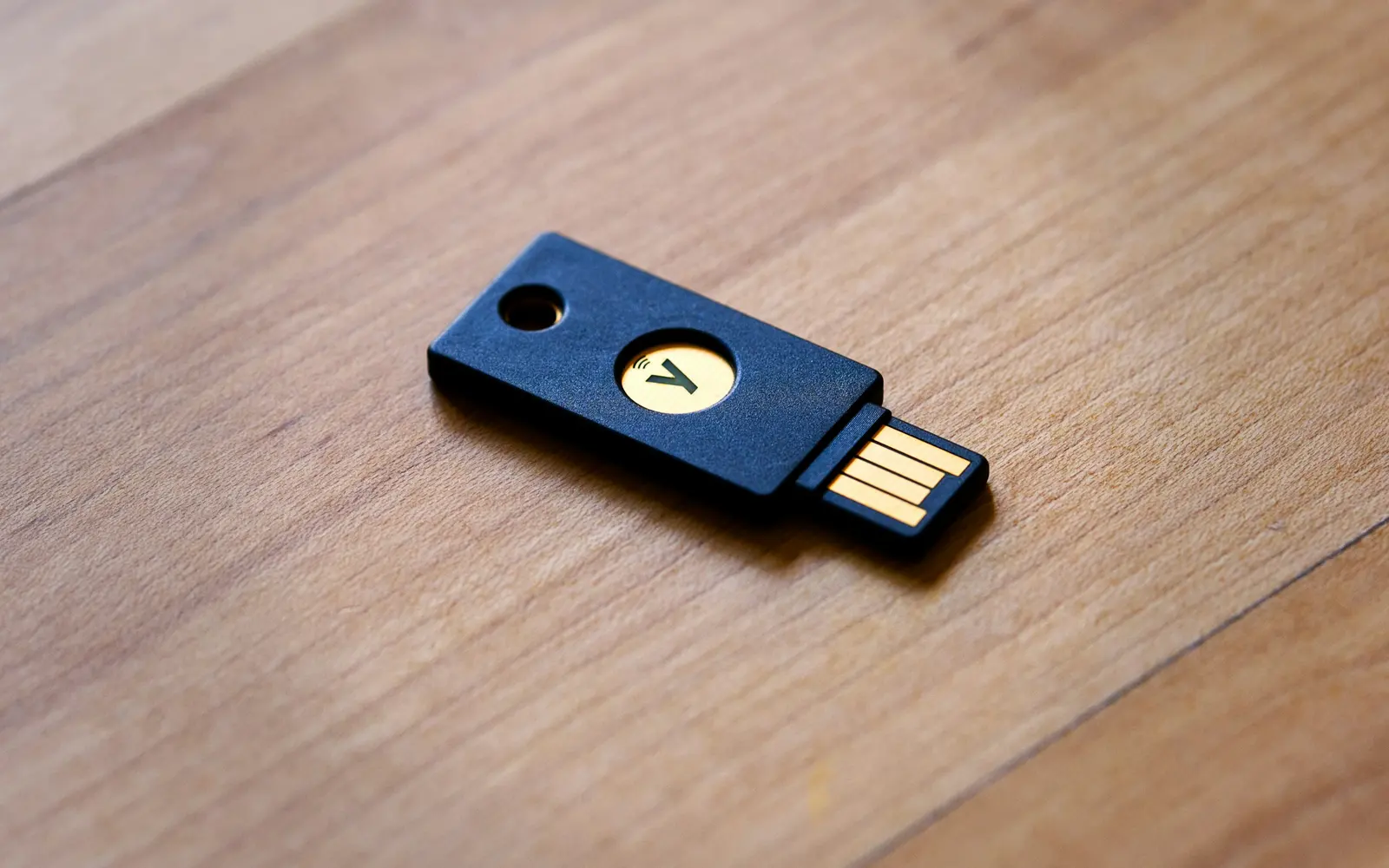
A security key is a small USB stick that proves it’s you when you plug it in or tap it. It can’t be phished, because the key checks which website is asking before it answers. The US Cybersecurity and Infrastructure Security Agency calls this kind of login, FIDO or WebAuthn, the only widely available phishing-resistant authentication.
Yubico’s basic keys have cost $25 for USB-A and $29 for USB-C since 2021, and the NFC versions also work by tapping. Buy two and register both on each account. Keep one on your keyring and one at home. If you lose the first, the second is your way back in.
Put them on email and the password manager first. Google takes them for 2-Step Verification, and so do plenty of others. Not every site does, which is what the next step is for.
Authenticator codes on your computer
When a site says “scan this QR code with your authenticator app,” you don’t need a phone to do it. A password manager on your computer can hold the same secret and make the same six-digit codes.
- 1Password does it built in, and the desktop app can scan the QR code straight off your screen.
- Bitwarden stores the keys for everyone, but making the codes needs its paid Premium plan.
- KeePassXC is free, works offline, and adds a code to any saved login.
The trade-off is real. A password and its code in the same vault means one break-in gets both, which is why I’d keep email and the password manager itself on the hardware keys and use the vault codes for everything below that line.
Passkeys, where a site offers them
A passkey replaces the password and the code with one step, and you don’t need a phone for it. Google says passkeys work on a computer running Windows 10, macOS Ventura or ChromeOS 109 or newer, and on a FIDO2 security key.
Where they’re kept matters. On Windows, a passkey saved with Windows Hello stays on that one computer and doesn’t sync, so a dead laptop takes it with it. On a Mac, passkeys live in iCloud Keychain and follow you to your other Apple devices. Saving one on your security key works anywhere you plug the key in. Fewer sites offer passkeys than offer codes, so treat them as a bonus and keep a second way in.
Text codes are the fallback
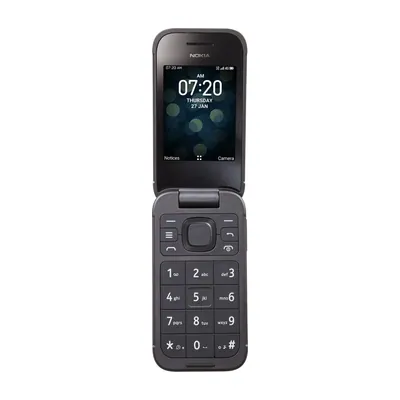
Any phone that gets texts gets text codes, and some services will also read the code out in a voice call, which works on anything with a ringer.
They’re also the weakest option. In a SIM swap, someone convinces your carrier to move your number onto their SIM, and your codes go with it. CISA lists text and voice codes as vulnerable to SIM swaps and to attacks on the phone network itself. The FCC adopted rules in November 2023 that require carriers to check who you are before moving your number or SIM, and to tell you when someone tries, which helps but doesn’t close the gap.
So set a PIN on your carrier account, ask whether they offer a lock on number transfers, and use text codes only where a site offers nothing better, or as the backup method behind a key.
An old smartphone on Wi-Fi, in a drawer
Some things only come as an app, like a work login or the bank’s own approval screen. For those I keep an old smartphone at home. Keep yours switched off in a drawer with no SIM card, and put it on Wi-Fi when you need it.
An authenticator app doesn’t need a signal. The codes come from a saved secret and the clock, and Google points out that its Authenticator app works with no internet or mobile service. Charge it once a month so it’s alive when you need it.
The drawer is the point. A smartphone that lives somewhere inconvenient gets used for the two minutes it’s needed and then goes back.
Banks and the services that insist on an app
This is the gap I can’t close for you. Some banks send their login approval only to their own app, with no text or key option at all. Call and ask anyway. Sometimes there’s a text option they don’t advertise, or a hardware token for customers who ask.
If the answer is the app or nothing, you have two choices. Keep the drawer phone for that one bank, or move your money to a bank that gives you a choice. I’ve come around to the second one being a fair reason to switch banks.
Work is the other one. Ask IT whether they’ll register a hardware key for you. Microsoft work and school accounts, for one, can use a security key in place of the authenticator app.
Test every login before the smartphone goes away
Before you switch, prove each method works. Sign out of your email on the computer and sign back in with the security key. Then do it again with the second key, the one that lives at home. Use one paper backup code on an account that doesn’t matter much, so you know the codes work and you know where the sheet is. Log in to one site with a code from the password manager, and to one that sends a text, with the SIM already in the new phone.
Anything that fails now is an inconvenience. The same failure on a Friday night, after the smartphone is in a drawer, can cost you the weekend. Fix it while the old phone can still get you in.
It’s a few seconds slower, and that’s fine
None of this is as quick as tapping “yes, it’s me” on a phone. I’ve found I don’t mind the extra seconds. If you’re still deciding whether a smaller phone is worth this much setup, my year with the Light Phone II covers the rest of the trade, and Going back to basics is why I made it.
Questions people ask
- Can I use two-factor authentication with a flip phone?
- Yes. Any phone that receives texts gets text-message codes, and some services will read the code to you in a voice call instead. Text codes are the weakest kind, because a scammer who talks your carrier into moving your number gets your codes too, so use them as a fallback and put a PIN on your carrier account.
- Do authenticator apps need a cell signal or internet?
- No. The six-digit codes are worked out from a secret saved when you set the account up and the current time, so the app makes them with no connection at all. That's why an old smartphone with no SIM card, kept in a drawer, still works as an authenticator.
- Can I use passkeys without a phone?
- Yes. As of 2024, Google says passkeys work on a computer running Windows 10, macOS Ventura or ChromeOS 109 or newer, and on a FIDO2 hardware security key. A passkey saved with Windows Hello stays on that one computer, so register a second method too.
- What if my bank only allows its own app for login codes?
- Call and ask whether they'll send codes by text or issue a hardware token. If the answer is the app or nothing, keep an old smartphone at home just for that bank, or take it as a reason to move your money somewhere that offers a choice.
Read next
-

How-to
Will a dumbphone work on Verizon, AT&T or T-Mobile?
Which dumbphones work on Verizon, AT&T and T-Mobile, why Verizon turns away the most phones, and how to run an IMEI check with your carrier before you buy.
-

How-to
Getting around without a map app
How I get around with a dumbphone: directions written in a pocket notebook, printed maps, phones with built-in maps, bus times by text, and asking people.
-
How-to
Keeping the group chat after you switch to a dumbphone
How to keep the group chat on a dumbphone: deregister iMessage, what RCS on iPhone changes, which small phones do group texts, and WhatsApp on a computer.